The export choices that actually matter
- For most UI screenshots, PNG is still the safer choice. It keeps text sharper and avoids unnecessary compression artifacts.
- If file size is the problem, crop first. That usually helps more than switching formats too early.
- The last check is still worth doing: open the saved file once before you paste it anywhere else.
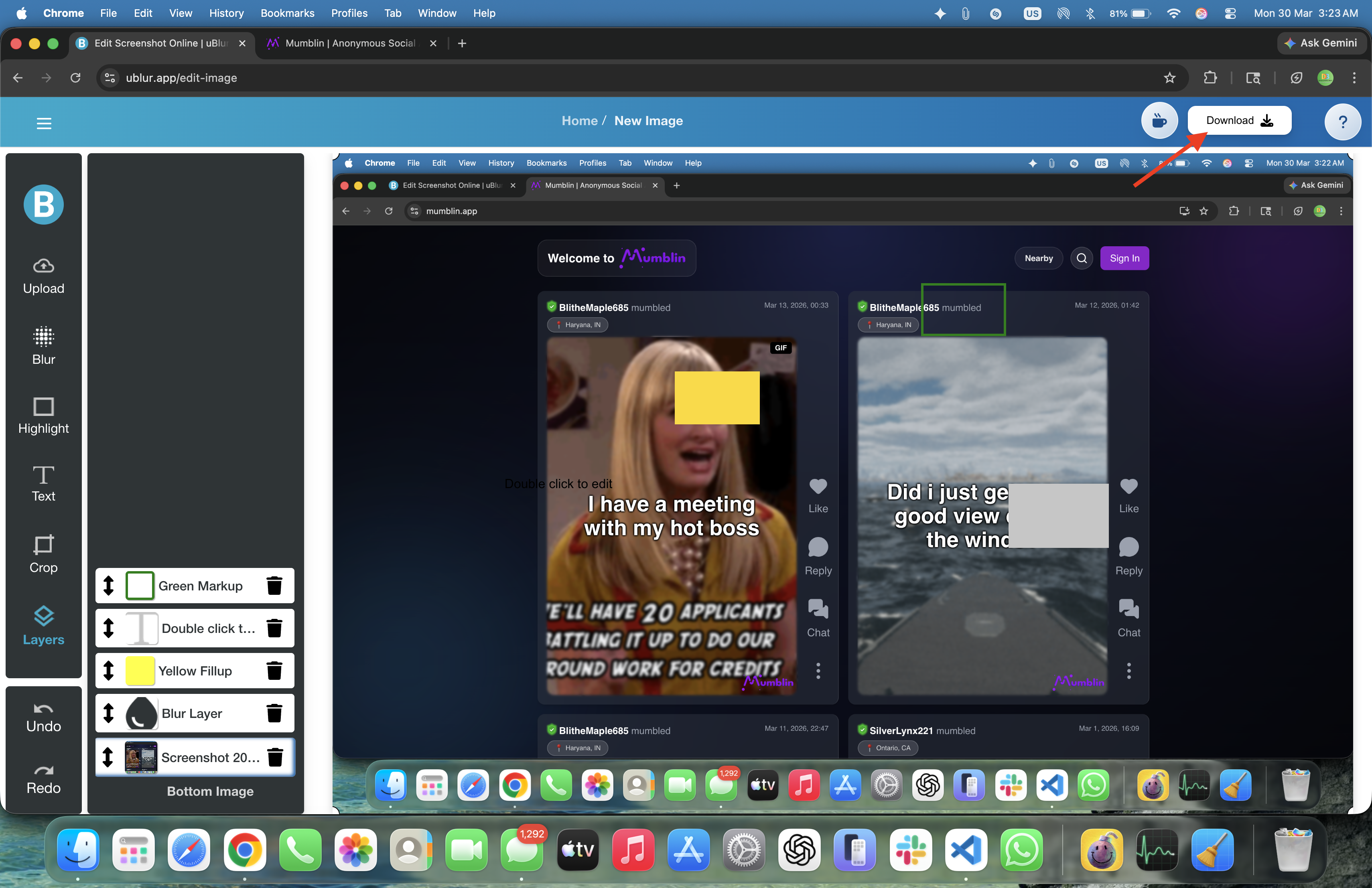
Why Export Your Screenshot?
Export is the point where a screenshot stops being your draft and becomes the thing other people will actually see. That is why this step matters. It affects sharpness, file size, and whether you catch the last private detail before the image leaves your machine.
Quick Steps to Export
- Finish your edits -- blur/fill sensitive areas, add highlights and labels, and crop.
- Click the Download button in the top-right of the editor.
- Select your preferred format (PNG or JPG) and confirm.
- The edited image will download instantly to your device.
PNG vs. JPG -- Which Should You Choose?
Both formats are widely supported, but they behave differently. Use the table below to pick the right one for your use case.
| Setting | PNG | JPG |
|---|---|---|
| Compression | Lossless (perfect quality) | Lossy (smaller files, potential artifacts) |
| UI/Text Sharpness | Excellent -- razor-sharp text and lines | Good -- may soften tiny text |
| Transparency Support | Yes (keeps transparent background) | No (fills background color) |
| Typical File Size | Larger | Smaller |
| Best For | UI screenshots, diagrams, sharp labels | Photos, big images for the web, email attachments |
Rule of thumb: if the image contains text, UI, or crisp shapes, choose PNG. If it's mostly photography or gradients, choose JPG for a smaller file.
Keeping Text Crisp and Readable
Screenshots often include small fonts and thin lines. To preserve clarity:
- Prefer PNG when your image is text-heavy or includes thin UI borders.
- If you must use JPG, keep quality high. Very low JPG quality can create blocky artifacts around letters.
- Crop first. Removing unused areas reduces scaling during display and keeps the important region sharp.
- When sharing in apps that downscale images, consider exporting at the original captured resolution to avoid double scaling.
Controlling File Size Without Ruining Quality
You don't need a giant file for most tickets or docs. Aim for a balance: fast to upload and quick to view, but still readable at 100% zoom.
- Use JPG for photos or large full-screen captures you'll embed in a wiki or email.
- Crop aggressively. Every pixel you remove saves bytes and attention.
- Avoid repeated exports of the same JPG (that compounds loss). Re-export from your edited source.
Privacy: Don't Let Metadata Leak
EXIF metadata can include capture time, device details, and color profiles. uBlur's export is designed for privacy-first workflows and does not upload your content, but you should still follow a quick checklist:
- Redact first. Blur ordinary PII (names, emails). Use Fill for anything that must never be recoverable (tokens, QR/bar codes, reset links).
- Check the chrome. Hide or redact URL bars, tab titles, and notification toasts.
- Filename hygiene. Don't include client names or ticket numbers in the exported filename if the image is public.
Color & Display Notes
Most browsers assume sRGB, which is perfect for screenshots. To avoid color surprises in other apps, keep your display in standard mode while capturing and avoid heavy OS-level color enhancements that can exaggerate saturation in the final image.
Accessibility & Clarity
Export isn't only about pixels -- it's also about comprehension. A clear image saves time for your reviewers.
- One highlight, one label. Too many overlays compete for attention.
- High contrast. Choose label colors that contrast with the underlying UI.
- Descriptive filenames. Use short, scannable slugs like 'checkout-error-step-2.png'.
Example Export Workflows
Bug Report (with PII)
- Blur names/emails and order IDs; use Fill for tokens and QR codes.
- Crop to just the broken component and a bit of context.
- Add a single highlight and a 2-5-word label ('Totals miscalculated').
- Export as PNG for crisp text. Attach to your ticket.
Knowledge Base Article
- Capture the full UI path but remove unrelated sidebars.
- Use multiple images for multi-step flows instead of one crowded image.
- Export as PNG for clarity or JPG if the CMS enforces size limits.
Social Media Post
- Assume it will be reshared -- remove all PII and internal references.
- Keep one clear callout so the message survives platform compression.
- Export as JPG for smaller size; verify after platform upload.
Troubleshooting
- Image looks fuzzy: Check that the viewer isn't downscaling. Use PNG for UI/text and view at 100% zoom.
- File is too large to attach: Crop tighter or switch to JPG. For very long pages, split into two images.
- Colors look off in another app: Re-open in a browser (sRGB). Avoid display 'vivid' modes while capturing.
Pre-Share Checklist
- PII blurred, secrets filled with a solid box.
- URL bar, tab titles, and notifications hidden or redacted.
- Readable at 100% zoom; no distracting overlays.
- Filename doesn't leak internal info.
Who Uses This Feature?
Anyone sharing screenshots uses this feature, but the stakes are highest for bug reports, support docs, tutorials, and anything going to a client or public post.
Related Tutorials
- How to Blur Text in Screenshots
- How to Highlight Areas in Screenshots
- Privacy-Safe Screenshot Redaction: Best Practices
Try It Now
Once the screenshot looks right, export it and review the saved file once before you send it.