A few things that matter in practice
- The basic flow is simple: paste the screenshot, pick Blur, drag over the text, then export.
- If the screenshot contains a token, QR code, or one-time link, use Fill instead. Blur is for ordinary text, not secrets.
- Before you share anything, open the export at 100% zoom once. That last check catches more mistakes than people expect.
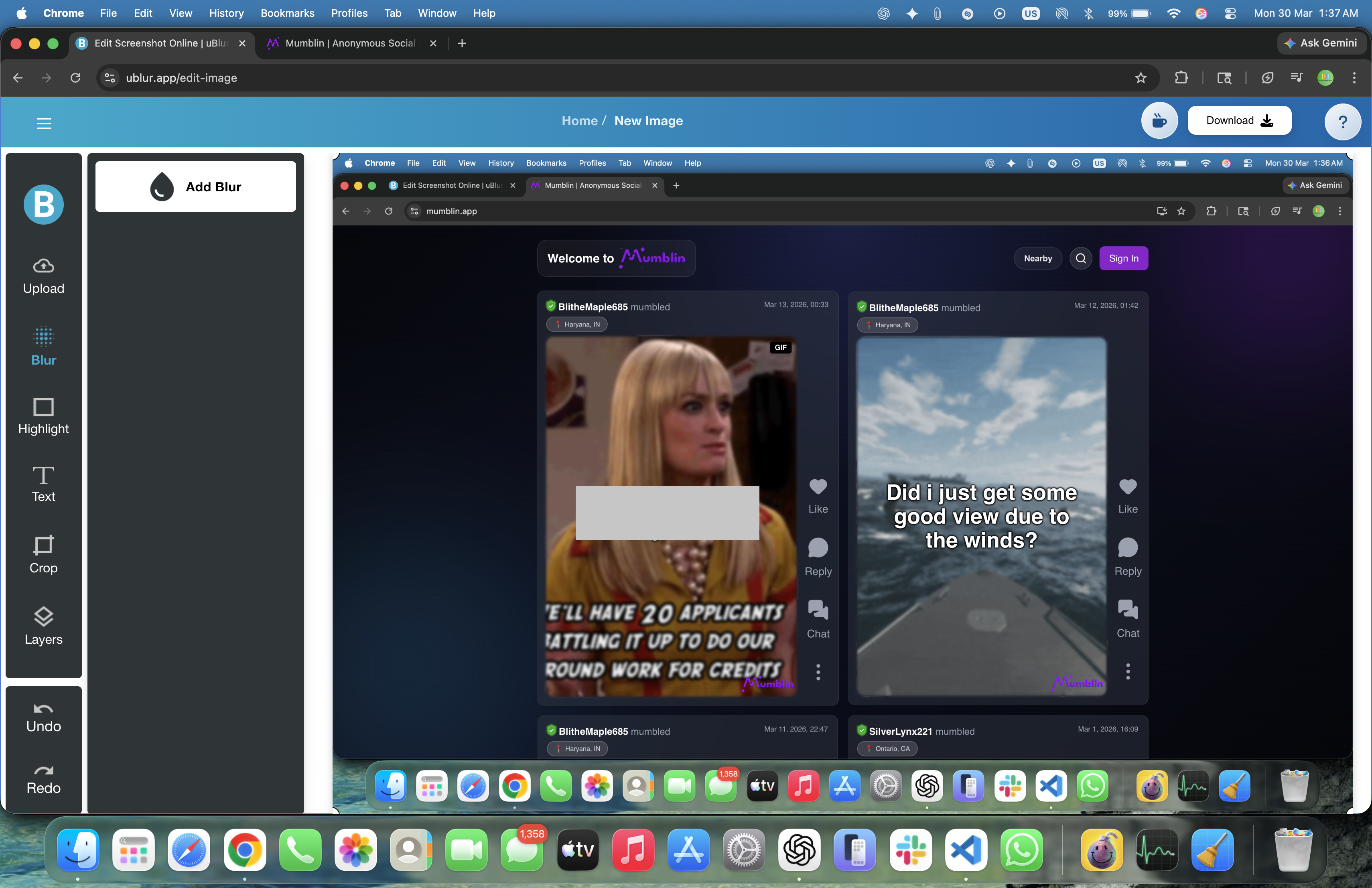
Why Blur Text in Screenshots?
Most screenshots are fine until you notice the small stuff: a customer name in the header, an email address in the corner, a tab title you did not mean to show, or an internal URL sitting in plain view. That is usually the difference between “quickly shared” and “wish I had checked that first.” Blurring text is the fastest way to keep the useful context of the screenshot while taking the sensitive bits out. In uBlur the edit happens locally in the browser, so you can do that cleanup without sending the image to a server first.
Quick Start: Blur in 6 Steps
- Open uBlur: uBlur.app/edit-image.
- Import your screenshot: Paste with
Ctrl/Cmd + Vor click Upload. - Select the Blur tool: It lives in the left toolbar.
- Drag over sensitive text: Cover names, emails, IDs, and any text you don't want visible. Increase blur strength if characters are still readable.
- Use Fill for secrets: For API keys, tokens, QR/bar codes, or secret links, switch to Fill and cover them with a solid box.
- Export: Click Download and verify at 100% zoom.
Blur vs. Fill: Which Should You Use?
A good rule is: if the text is ordinary identifying information, blur is usually enough. If it is something that should never be recoverable under any circumstance, use Fill. Names, emails, phone numbers, and order IDs fit in the first bucket. API keys, reset links, barcodes, QR codes, and payment details belong in the second.
- Blur: Default for general text; adjust strength until illegible.
- Fill: Mandatory for secrets, codes, and anything that must never be reconstructed.
Pre-Redaction Hygiene (30 Seconds)
This part feels annoying until it saves you from fixing the same screenshot twice. Close unrelated tabs, mute notifications, and crop away the parts you were never trying to show in the first place. A cleaner capture usually means less blurring and a much easier export.
Practical Examples
Bug Report
Blur the customer name and email in the header, the order ID, and any internal URL visible in the address bar. Use Fill for tokens or QR codes. Add one Highlight around the broken element and a short label like 'Totals miscalculated' to guide the reviewer.
Support Reply
This is the situation where I usually want the screenshot to stay readable. Blur names and ticket references, leave the UI itself alone, and add one short label for the fix or next step.
Public Post
For a tweet or blog, assume screenshots will be reshared. Remove tab titles and notifications, blur any identifiable text, and use Fill over IDs. Keep one concise label so the image is self-explanatory.
Best Practices for Strong Redaction
- Check at 100% zoom: If you can read a single letter, increase blur.
- Crop first: Cropping removes entire regions you would otherwise need to blur and keeps the final image focused.
- Keep boxes aligned: Neat edges and consistent spacing look professional and make the image easier to parse.
- Label sparingly: One short label beats a paragraph overlay.
- Don't blur secrets -- fill them: Tokens and barcodes should be covered with a solid box, not blurred.
Keyboard & Workflow Cheatsheet
- Paste image:
Ctrl/Cmd + Vafter copying a screenshot. - Undo / Redo:
Ctrl/Cmd + Z/Ctrl + Y. - Fast loop: Paste → Blur/Fill → Highlight → Export.
Common Mistakes to Avoid
- Light blur: Decorative blur can leave glyph shapes visible -- increase strength until completely unreadable.
- Redacting after upload: If you paste a raw screenshot into a chat or doc first, that tool may keep the original. Redact before sharing.
- Forgetting the chrome: Tab titles, URL bars, and notifications often leak context; crop or blur them.
- Over-labeling: Too many labels compete for attention. Use one highlight + one label whenever possible.
Team Style Guide (Reusable)
- Tone: Imperative and concise -- 'Click Save', 'Open Settings'.
- Length: 2-6 words per label; break long sentences into two labels.
- Consistency: One highlight color for steps; another for warnings.
- Naming: Use the exact UI text for buttons and menu items.
Accessibility & Readability
Choose high-contrast text colors, keep labels slightly larger than the surrounding UI text, and place labels on clean background areas. If the interface behind the label is busy, nudge the label outside the target and use a highlight to point back to it. Left-aligned labels are fastest to scan in most languages.
Verification Checklist Before Export
- All PII (names, emails, phone numbers, IDs) is blurred beyond recognition.
- Secrets (tokens, bar/QR codes, reset links) are covered with a solid fill.
- Address bars, tab titles, and notifications are cropped or redacted.
- One clear highlight marks the area reviewers should focus on.
- Final image is readable at 100% zoom with no surprises.
Frequently Asked Questions
Is uBlur free to use?
Yes -- no sign-ups, no watermarks, and no paywalls.
Does uBlur upload my images?
No. All processing happens locally in your browser for maximum privacy.
Can I blur multiple areas?
Absolutely. Add as many blur boxes and fill blocks as you need, then export.
Explore More Guides
- How to Highlight Specific Areas in a Screenshot
- How to Export Your Edited Image
- Privacy-Safe Screenshot Redaction: Best Practices
Try It Yourself
Ready to hide sensitive data quickly? Open the editor, blur what's private, add a single label to guide the reader, and export a clean, share-ready image.