What usually keeps the canvas sane
- The layer order matters more than people think. A messy stack is usually why a screenshot starts feeling hard to read.
- Keep redactions below highlights and keep labels on top. That one habit fixes most layout problems.
- If you are working on bug reports or help docs, layers save you from redoing the whole screenshot every time you want to tweak one element.
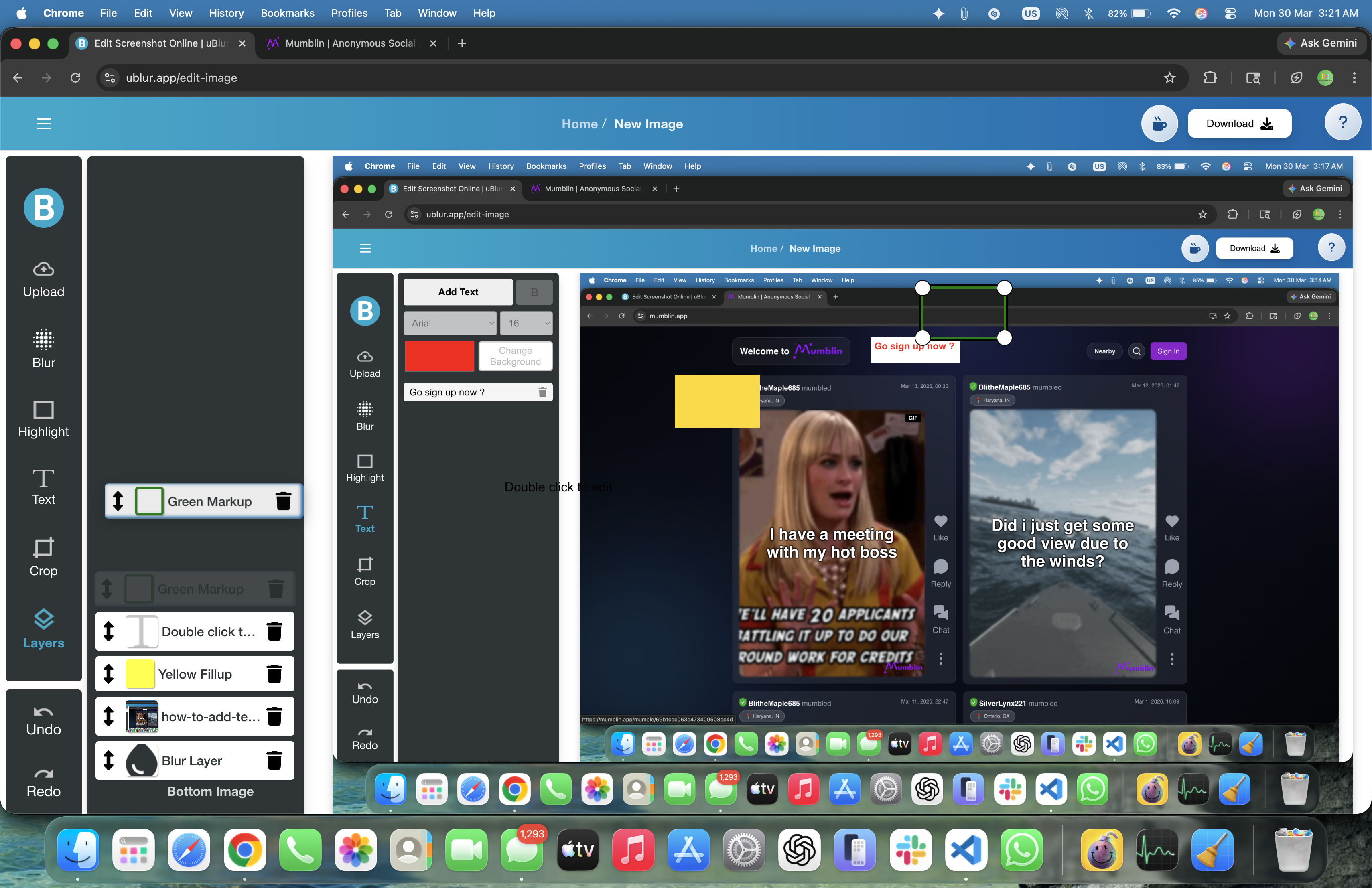
What Are Layers?
Layers are just separate pieces of the same screenshot. Your blur boxes, highlights, and text labels are not baked into one flat image immediately, which means you can move them around, reorder them, or delete one without wrecking the rest. That sounds basic, but it is the difference between a screenshot that is easy to revise and one that turns into a mess after two edits.
Why Use Layers?
- Clarity: Keep sensitive redactions separate from instructional labels and visual emphasis.
- Speed: Tweak or delete one element without redoing the whole screenshot.
- Consistency: Maintain a predictable order--redactions underneath, highlights above, labels on top--so your final image reads cleanly.
- Reusability: Duplicate a layer to reuse a style (e.g., matching highlight color/size).
Open the Layers Panel
- Click the Layers icon in the left toolbar to open the panel.
- You'll see a stack of every element in your scene. Items at the top of the list appear above items below them (just like slides stacked on a desk).
- Click any layer to select it; its handles will appear on the canvas for quick edits.
Core Actions You'll Use All the Time
- Reorder: Drag a layer up or down to change its visual stacking order. Keep blur/fill layers beneath highlights and labels so your annotations stay readable.
- Rename (if available): Give layers human-readable names like 'Blur - email 1' or 'Label - Step 2.' Clear names make complex edits painless to revisit.
- Toggle visibility (if available): Temporarily hide a layer to compare before/after.
- Delete: Remove trial edits cleanly without touching anything else on the canvas.
Recommended Layer Order (Z-Index Strategy)
A consistent order prevents accidental overlaps and keeps text crisp over highlights:
- Bottom: Image background (your screenshot).
- Redaction layers: Blur for ordinary PII; Fill (solid boxes) for secrets like tokens, bar/QR codes, and one-time links.
- Highlights: Frames or emphasis around the safe area you want viewers to notice.
- Top: Text labels. Keep labels above highlights so glyphs remain sharp and readable.
Workflow: From Messy to Organized in 60 Seconds
- Group by purpose: Create redactions first (Blur/Fill), then add visual emphasis (Highlight), then attach short labels.
- Rename critical layers: Give obvious names to anything you might tweak later (e.g., 'Fill - API key', 'Highlight - CTA button').
- Reorder for readability: Ensure labels sit on top; highlights should never cover text.
- Final pass: Toggle layer visibility (where available) to sanity-check what each element adds.
Patterns That Scale to Complex Screens
- Regional stacks: For long pages, keep layers grouped by region (e.g., 'Header,' 'Form,' 'Receipt'). This reduces scrolling in the layer list.
- One purpose per layer: Don't stack multiple unrelated blurs into one giant box; use separate blur layers named after what they hide.
- Re-use labels: Duplicate a label layer to keep font size and tone consistent across steps.
- Sequence numbers: Prefix related labels with 1-, 2-, 3- to keep ordering obvious in the list.
Example: Bug Report with Multiple Redactions
- Add Fill layers over the API token and any QR/bar codes (non-recoverable concealment).
- Add Blur layers over names, emails, phone numbers, and order IDs.
- Add a Highlight around the broken element and a Text label: 'Totals miscalculated.'
- Reorder so labels sit at the top; verify everything at 100% zoom.
Example: Onboarding or Tutorial
- Create one Highlight per step and number them 1-3 for scan-ability.
- Duplicate a Text label layer to keep identical formatting for each instruction ('Open Settings' → 'Select Team' → 'Click Invite').
- Keep redactions below highlights so labels remain crisp and unobstructed.
Accessibility & Readability with Layers
- Contrast matters: If a highlight color competes with the UI, switch to a hue not present in the product.
- Don't bury labels: If text becomes hard to read, move its layer to the top and nudge the box off the target so content stays visible.
- Limit density: One highlight and one label per image is ideal for bug reports; split long flows across a few images instead of crowding one.
Common Layer Mistakes (and Fixes)
- Label under a highlight: Drag the label layer to the top so glyphs stay sharp.
- Highlight covers UI: Resize or offset the highlight so it frames, not hides, the target.
- One giant blur for many items: Split into several blur layers with names ('Blur - email,' 'Blur - phone') so later edits are precise.
- Unclear order: Adopt the standard stack--redactions, highlights, labels--and stick to it.
Troubleshooting
- Can't select an item? Click it in the Layers panel to force selection, then adjust on the canvas.
- Overlap confusion? Temporarily hide layers (where available) to isolate the one you need.
- Visual artifacts? Ensure labels are above highlights; verify blur strength at 100% zoom.
Team Conventions You Can Share
- Naming: 'Fill - token,' 'Blur - email,' 'Highlight - CTA,' 'Label - Step 2.'
- Ordering: Background → Redactions → Highlights → Labels.
- Tone: Labels should be imperative and concise (2-6 words), using the app's exact button names.
- Colors: One highlight color for steps; a secondary color for warnings.
Final Checklist Before Export
- All PII is blurred; tokens and QR/bar codes are covered with solid Fill.
- Labels sit above highlights and do not cover important UI text.
- Only one focal point per image; split long flows into multiple images.
- Everything is readable and secure at 100% zoom.
Who Benefits Most from Layers?
The people who get the most out of layers are the ones who keep coming back to the same screenshot: QA testers marking up several issues, support teams writing walkthroughs, and anyone who needs to add a few annotations without flattening everything into chaos.
Related Guides
- How to Blur Text in an Image
- How to Highlight Specific Areas in a Screenshot
- How to Add Text to a Screenshot
Try It Yourself
Open the editor, add a few annotations, then reorder them once. It is the fastest way to see why layer order matters.