What usually works best
- Do the cleanup first. If anything needs redaction, handle that before you start highlighting.
- The box usually looks better when it sits just outside the target instead of covering the UI itself.
- For support screenshots, the clean sequence is still crop, redact, highlight, add a short label if needed, then export.
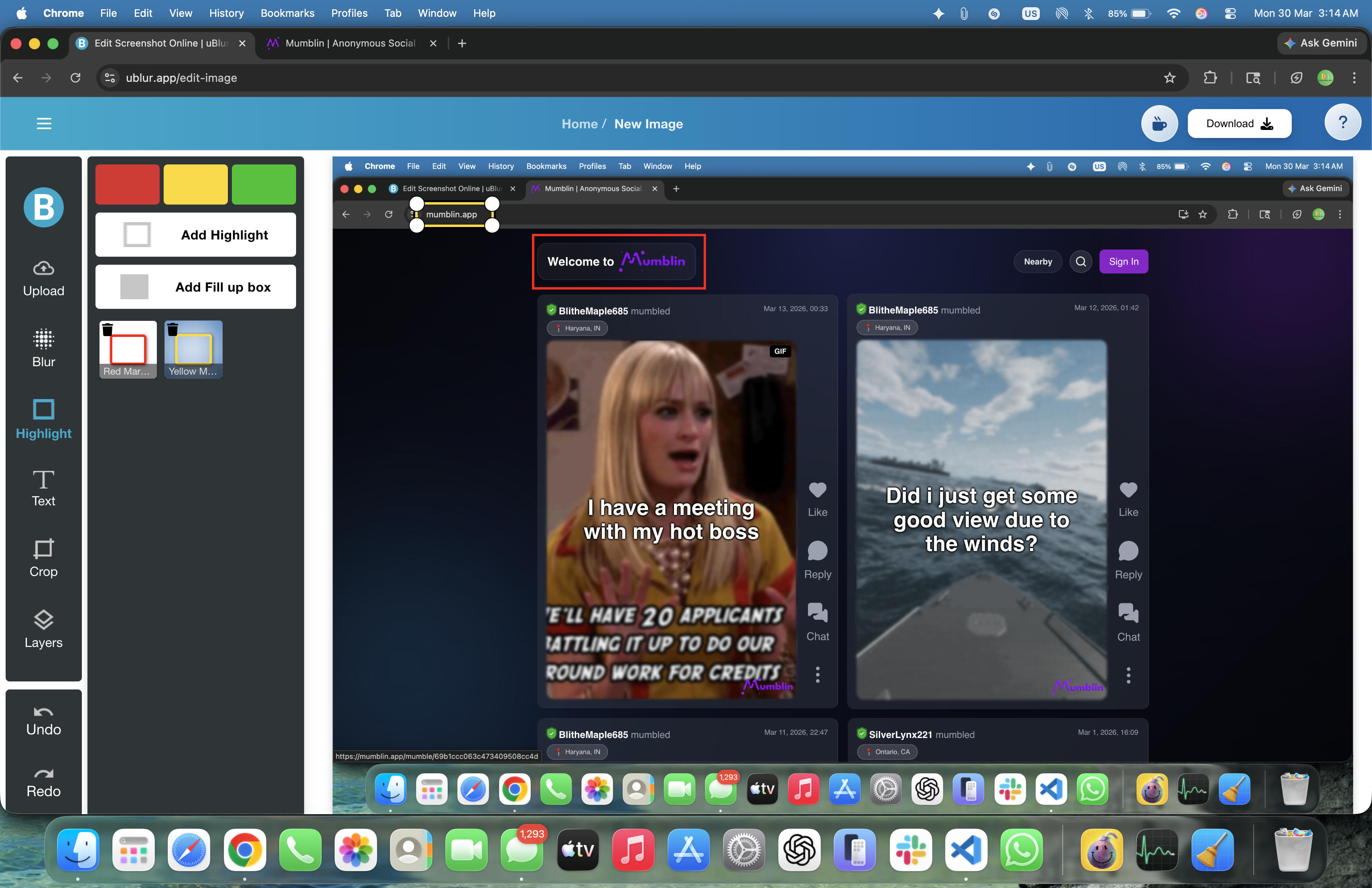
Why Use Highlights?
Most people do not need more annotation. They need less, placed in the right spot. A single highlight can tell the viewer where to look faster than a paragraph of explanation. That is especially true in bug reports, onboarding docs, and UX feedback, where the screenshot is supposed to answer one question quickly: “What am I looking at?”
When to Highlight vs. When to Redact
Highlighting is for attention, not concealment. If the information is safe to show and you just want the reader to look there, highlight it. If it should not be visible at all, blur it or fill it. That sounds obvious, but it is where a lot of messy screenshots go wrong.
Steps to Highlight in uBlur
- Open uBlur: uBlur.app/edit-image.
- Upload or Paste: Drag your screenshot into the canvas or paste it with Ctrl/Cmd + V.
- Redact first (if needed): Use Blur for PII and Fill for secrets.
- Select Highlight: Click the
Highlighttool on the left panel. - Click and Drag: Draw a box around the area of interest. Adjust size, position, and color until it's obvious but not overwhelming.
- Refine: If the box covers critical UI, pull it back slightly so the element remains visible. Add a brief text label if necessary.
- Export: Click Download and verify the result at 100% zoom.
Placement Patterns That Work
- Frame the target: Place the highlight just outside the component's bounds so edges stay visible.
- Anchor with a label: Position a short label ('Click Generate Token') near the highlight, not on top of the button.
- Show the path of action: For multi-step flows, number highlights (1, 2,3) to make order unambiguous.
- Context + detail pair: If one box is not enough, use one for the wider area and one for the exact field.
Choosing Colors and Contrast
Pick a color that looks obviously added by you, not something that blends into the product UI. If the interface already uses a lot of blue, for example, use something else. Across a guide or doc set, it helps to stay consistent: one color for steps, another for warnings.
Accessibility & Readability
- Contrast first: Ensure the highlight color remains visible against both light and dark panels.
- Avoid covering content: Set the highlight so primary UI text isn't obscured.
- Use labels sparingly: 2-6 words per label; use the app's exact wording for buttons/menus.
- Left-align text labels: Faster to scan in most languages.
Common Mistakes to Avoid
- Highlighting before redaction: Always blur/fill sensitive data first, then highlight safe areas.
- Over-highlighting: Three boxes compete for attention; one clear highlight wins.
- Covering the target: If the highlight hides text, pull it back or shrink it.
- Color mismatch: A highlight color that blends into the UI can be missed entirely.
Keyboard & Workflow Cheatsheet
- Paste screenshot: Ctrl/Cmd + V after copying.
- Undo / Redo: Ctrl/Cmd + Z / Ctrl + Y.
- Fast loop: Crop → Blur/Fill → Highlight → Label → Export.
Example Workflows
Bug Report
- Blur names, emails, and order IDs; fill QR/bar codes and tokens.
- Highlight the broken element and add a short label ('Wrong total').
- Export as PNG for crisp UI text; attach to the ticket.
UX Review
- Use two highlights: one for the primary action, one for the confusing element.
- Add labels like 'Primary CTA is low contrast' or 'Crowded sidebar.'
- Export and paste into your design review doc.
Onboarding/Tutorial
- Capture each step as a separate image.
- Number highlights (1-3) and keep labels imperative ('Open Settings', 'Select Team').
- Export; assemble in your wiki so readers can scan quickly.
Troubleshooting
- Highlight looks dull: Switch to a more saturated color or increase stroke/opacity so it pops against the UI.
- Too busy: Reduce to one highlight and one label; split long flows across multiple images.
- Readers miss the target: Move the label closer or add a second, smaller highlight as a pointer.
Team Style Guide (Reusable)
- Palette: One color for steps; a secondary color for warnings or 'Do not click.'
- Labels: 2-6 words, imperative tone; use exact UI strings for button names.
- Density: Max one highlight per image for bug reports; two if strictly necessary.
- Naming: Export filenames like 'billing-step-2-highlight.png' for easy reference.
Privacy Checklist Before You Export
- PII is blurred, secrets are covered with solid fill.
- Tab titles, URL bar, and notifications are cropped or redacted.
- Your highlight frames the target without blocking important UI text.
- Image reads clearly at 100% zoom with one clear focal point.
Who Can Benefit from Highlighting?
- 👨💻 QA Testers -- Faster, clearer bug reports with secure redaction.
- 👩🏫 Educators -- Step-by-step tutorials that students can follow at a glance.
- 🛠 Developers -- Precise visual feedback during design and code reviews.
- 📣 Support & Success -- Explain fixes and workflows without writing a wall of text.
Explore More Tutorials
- How to Blur Text in an Image
- How to Add Text to a Screenshot
- How to Export Your Edited Image
- Privacy-Safe Screenshot Redaction: Best Practices
Try It Yourself
Ready to highlight your screenshots like a pro? Open the editor, frame the important area, add a concise label, and export a clear, share-ready image -- all without uploads.