What works well in practice
- If you are moving fast, paste is usually the quickest path.
- Clipboard behavior still varies by browser, so if paste feels flaky, switch to upload instead of fighting it.
- The important part for private screenshots is unchanged: bringing an image into uBlur does not upload it anywhere.
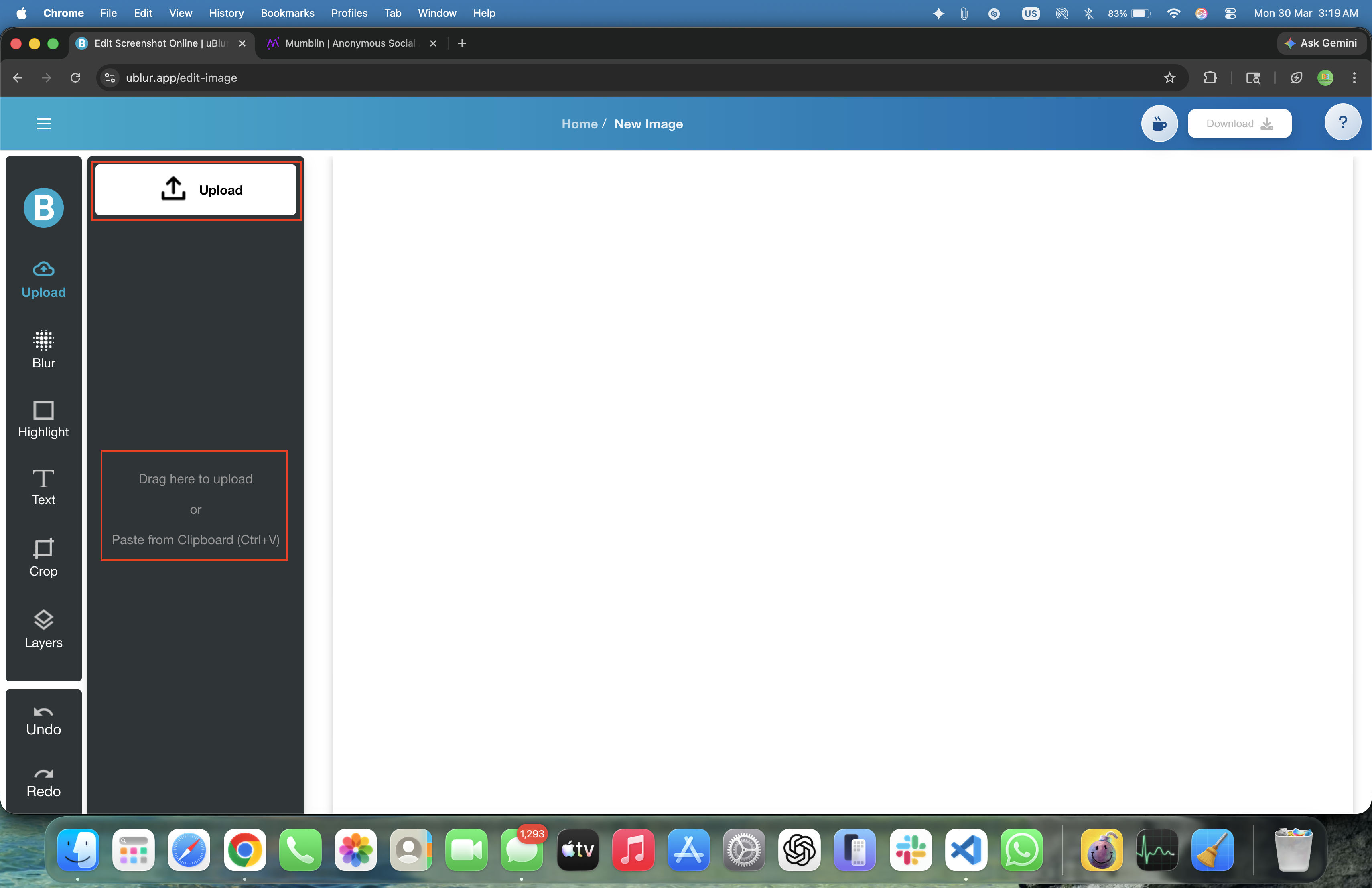
3 Quick Ways to Start Editing
- Click Upload and pick a file from your computer.
- Drag and drop the image onto the editor.
- Copy a screenshot, then press
Ctrl + VorCmd + V.
What File Types Work Best?
For most screenshots, PNG is the safe default. It keeps text sharp and holds up better when you are working with UI, forms, or diagrams. JPG is still useful for large photos or full-screen captures where file size matters more than perfect text rendering. WebP is fine too if that is what your system gives you. GIFs are a different story: if you bring one in, treat it like a still image rather than an animated workflow.
Method 1 -- Upload from Disk
Use Upload when the screenshot is already saved or somebody sent it to you. Click Upload, pick the file, and it lands on the canvas right away. If you are assembling a multi-step guide, it is worth naming files sensibly before you start. That saves time later when you export.
- Tip: If the file looks huge on the canvas, that's OK -- you can crop and export a smaller, focused region for clear communication.
- Privacy note: Upload doesn't send your image anywhere. The file is read locally by the browser and stays on your device.
Method 2 -- Paste from Clipboard
Paste is the route I would use most of the time. Take the screenshot, switch over, press Ctrl/Cmd + V, and start editing. No file picker, no saved temp image, no extra step.
- Windows capture:
Win + Shift + S(region),Alt + PrtSc(window),PrtScorWin + PrtSc(full screen). - macOS capture:
Shift + Cmd + 4(region),Shift + Cmd + 3(full),Shift + Cmd + 5(options). - Linux (varies):
Shift + PrtScor tools like Flameshot to copy to clipboard.
If the browser asks for clipboard access, approve it. That prompt is tied to the paste action itself. uBlur is not sitting there reading your clipboard in the background.
Method 3 -- Drag & Drop
Drag and drop is handy when you have a folder of screenshots open next to the browser. Just drop the file onto the canvas. If it feels like nothing happened, you probably dropped onto the wrong part of the page or another browser element grabbed the event first. Try again on the main editor area.
Privacy First: Nothing Leaves Your Device
uBlur performs all editing locally using your browser's graphics engine. That means your screenshots never travel to our servers -- no uploads, no background sync, and no watermarks. This is ideal for redacting PII, internal dashboards, admin tools, or proprietary interfaces. For content that must never be reconstructed (tokens, QR/bar codes, reset links), always use Fill instead of Blur to cover it completely.
Make Your First Edit in 30 Seconds
- Paste a screenshot (or upload/drag one in).
- Use Blur on names and emails; use Fill on secret codes.
- Add one Highlight around the important area and a short label like 'Click Save'.
- Export and review at 100% zoom to ensure nothing private is legible.
Browser Tips & Clipboard Quirks
- Chrome/Edge: Best for copy-paste from most apps. If paste does nothing, re-take the capture and try again -- some apps copy a link instead of pixels.
- Firefox: May ask permission the first time you paste. Allow access for smooth workflow.
- Safari: On macOS, use the native screenshot shortcuts, then paste into uBlur; if paste is blocked, click the canvas once and try again.
Mobile & Tablet
On iOS and Android, you can upload from your photo library or share a screenshot to your browser. Pasting from the clipboard is device-dependent and may require using the system share sheet first. For step-by-step guides, consider cropping on-device before uploading so the final image is easier to annotate on a smaller screen.
Troubleshooting
- 'Paste didn't work.' Some apps copy text or a file path, not pixels. Re-capture using the OS screenshot shortcut, then paste again.
- 'The image looks huge.' That's okay -- crop to the important area. Smaller images are faster to annotate and easier to read.
- 'Colors look odd.' Use the browser at normal display settings (sRGB). Avoid vivid display modes that exaggerate saturation.
- 'The file is too big to share.' Crop tighter or export as JPG. If your CMS compresses heavily, check the uploaded preview to ensure labels are still clear.
Pre-Share Checklist
- Names, emails, ticket IDs blurred; tokens and QR/bar codes covered with solid Fill.
- URL bar, tab titles, and notifications cropped or redacted.
- One clear highlight and a short label to guide the reader.
- Readable at 100% zoom; filename doesn't leak private info.